

Windows 10, 11 ( 4 MB )
“I built LOTM because I wanted a reference mastering
tool that could stand on its own two feet. Or ears.
Whatever mastering applications tend to stand on.”
This isn’t your grandfather’s “backup”.
I built it because the world got weird. With AI in the loop, files explode. Dozens of edits in seconds.
Files are created, rewritten, deleted like a mad machine gun.
Most backup tools assume a world with careful edits, occasional saves and the odd regrets. Now…
it’s raining files.
Backup software also tends to assume you’re preparing for the big one. The “restore everything
after the hundred-year flood followed by the alien invasion” moment.
But that’s not how things usually go for me. Most of the time it it’s not the big alien invasion that is
on my mind. It’s a constant stream of tiny forest fires in my project folder.
“What did I call this yesterday?”
“That version from five minutes ago… that one worked, but this one sets my GPU on fire.”
So I built Unbroke for exactly this kind of mess. It’s what Ctrl+Z wishes it could be if only it had a proper education.
Unbroke is a safety net for your files: documents, code, your novel, your Vogon poetry… Because
important things on your computer break. Sometimes by you, sometimes by AI, and apparently
sometimes by the cat.
Underneath Unbroke is a data-center-grade object-store backup engine inspired by Git. But instead
of making you perform backup archaeology, Unbroke is clear, light and keeps you sane.
- The Cranky Man

(for Windows)

One-time purchase, no subscriptions. Download the trial version and test it for 30 days free.
Inspired by Git, but not quite Git.
Just like the author ™
Unbroke
Go back.
Unbroke It.
Fast and lean data-center-grade backup on
your local computer.


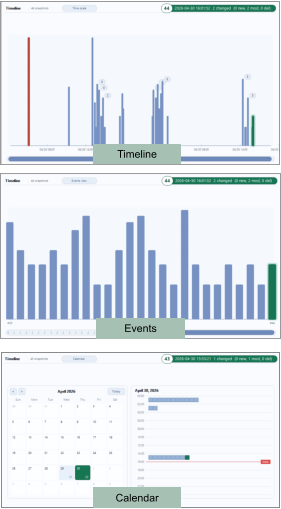
Timeline
Browse
Restore
See every change
over time
Explore snapshots
like a true explorer
Unbroke your project
in one click



Local first
Your data stays on
your drive.

Fast & light
Minimal overhead
fast, efficient code.


Private
Did I say your files
are 100% yours?

Snapshot for the modern gentlefolk
So what makes Unbroke different, apart from the weird name?
Other backup tools fall into two extremes.
Some give you one giant backup you’re afraid to touch.
Others snapshot everything, all the time, until your history
becomes the problem. (Not a euphemism.)
And sure, tools like Git handle version control really well. It just
requires a mild personality disorder.
I needed something in the middle: flexible enough for fully
automated backups, but smart enough not to drown me in
euphemisms. (See what I’ve done just there?)
And also usable and fast. So I can pick a single file from the pile
at any time without doing a dance on my head.
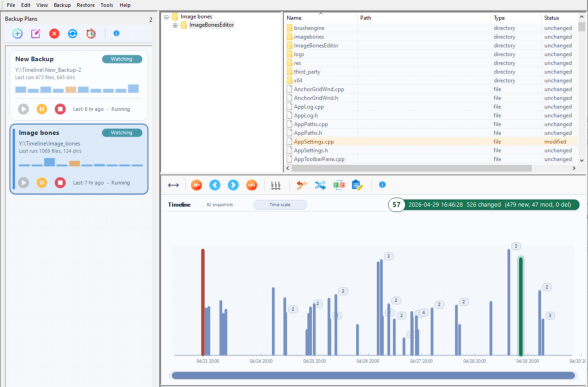
History at your mouse-clicks
Taking snapshots is one thing. Making them usable is totally different situation.
“I have a backup blob somewhere, so I can probably restore everything.” That’s not as helpful as it
sounds if it also means reverting stuff you actually wanted to keep.
I don’t want to roll back half my project just to recover one file and then discover I also undid things
that were perfectly fine.
What I actually need is simple:
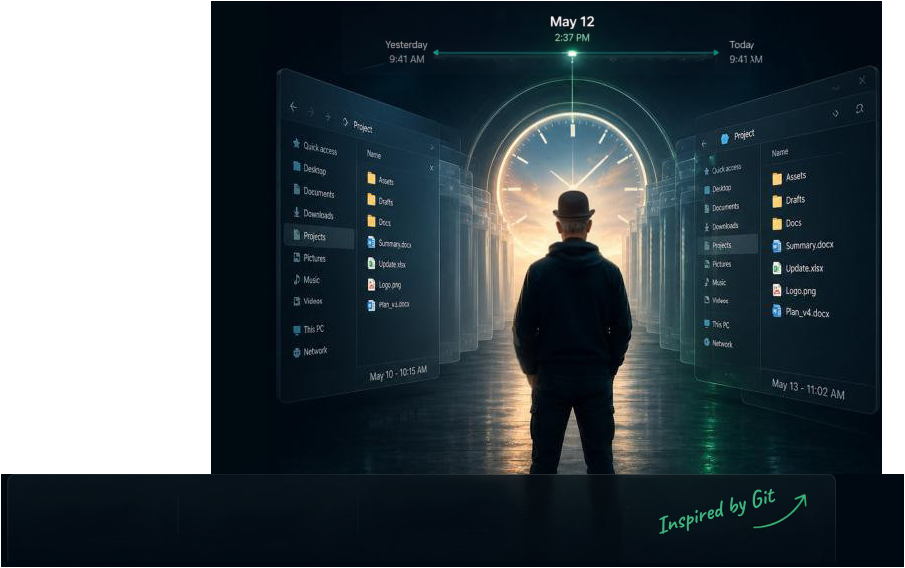
Pick a point in time, say, ten minutes ago, when everything worked and see exactly what existed then.
Like a file explorer. Just… earlier. Or like a time mach….
(Wait, that’s registered trademark of Apple Inc, so this is definitely not that. Who said that?)

See what actually changed
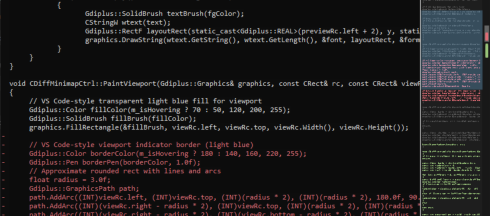
Unbroke includes a built-in text (code) diff, so you don’t have to restore
anything just to see what changed.
Compare a snapshot to your current files, or to the previous snapshot
(if that’s what you want), and see exactly what happened, line by line.
Because most of the time, it’s not everything that broke and sometimes
you only need a file or even a single line.
Unbroke borrows some great ideas from Git: snapshots should store content
efficiently using a SHA256-hashed, content-addressed object store.
(I know. You were just about to say the very same thing. What a coincidence!)
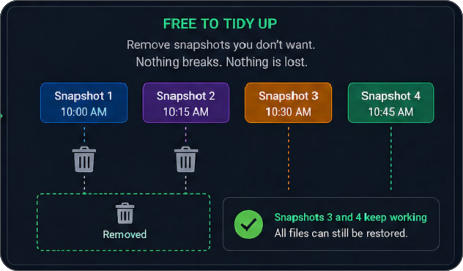
Anyway: It makes backups lean and very efficient while keeping them 100%
independent. You can delete snapshots or merge them together without
affecting each other. It works, it’s data-center-tested and it makes sense.
But this is where the similarities end.
The usage is almost anti-Git. And that’s not a bug.
What Ideas It Borrows From Git
•
Unchanged file contents are stored once
•
Snapshots point to stored objects
•
Repeated backups stay compact
•
File history can be compared across snapshots
What It Doesn’t
•
No staging (whatever it means)
•
No commits to write
•
No merge conflicts (Hahaha, I love those)
•
Automatic snapshots run in the background
•
Interface is for humans
•
It is fast
The result is a lean Windows timeline backup system with Git-like storage efficiency but an easy user experience built around automatic
protection and easy recovery. (Say that fast three times)
FAQ
Can I move the repository?
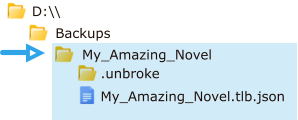
Yes, but move the whole backup plan folder. A backup plan folder (let’s say it’s called ‘My_Amazing_Novel’ ) contains the plan definition file (`My_Amazing_Novel.tlb.json`) and the actual repository (`.unbroke`) full of stuff. Keep it all together. For clarity: You need to move the whole My_Amazing_Novel folder, ok? 1. Stop any running schedule for that plan. 2. Move the entire plan folder to the new location. 3. Remove the Old plan (use Remove Plan button). This only removes the plan from the Unbroke list of plans (Plans are never deleted) 4. Use File - Import Backup Definition to re-import the new plan (In our example, open the \My_Amazing_Novel\My_Amazing_Novel.tlb.json file from the new location)How to fire a manual snapshot from the command line, or by an AI agent
Since it is an AI age (if you didn’t know), you can let an AI coding agent request a snapshot after it completes a task. When doing this, it is often best to stop or pause the plan’s schedule during the agent session. Otherwise, the schedule and the agent may both try to start a snapshot at nearly the same time. Syntax: ```powershell "C:\Program Files\Unbroke\Unbroke.exe" /silent /quicksnapshot "<PlanName>" "<short task summary>" ``` <PlanName> is the unique plan name (actually it is a sub-folder), not the editable display name. For the user to find Plan Name: 1. Select the plan card and choose Edit Plan. 2. Look in the top-right Plan Name field. Use that exact value as <PlanName>. Example: New_Backup-2 From an AI agent or command line Ask the agent to list the available plans: ```powershell "<path to>\Unbroke.exe" /listplans ``` The output includes the PlanName, display name, and definition path. Use the PlanName value with /quicksnapshot. Example of a manual snapshot: "C:\Program Files\Unbroke\Unbroke.exe" /silent /quicksnapshot "My_Project_Backup" "AI: finished restore dialog cleanup" Note: if Unbroke is already running, which probably is, this command sends the request to the running instance. The command will return after the request is delivered, before the snapshot itself has fully completed. The command may only confirm that the request was delivered, not that the snapshot succeeded. If you don’t know how to create tools in your AI Agent (codex, claude code, opencode, kilocode etc…) just play possum (like the author when his wife asks for help with dishes) and copy the above text and ask the AI to help you with creating a properly formatted tool it can use.Release Notes
1.1 - Backup Retention/Auto Cleanup - a customizable retention ladder. 1.01 - 1.03 - High DPI fixes so it looks good on High DPI screens
Inspired by Git but without the
personality disorder.


Backup of the backup of the backup
Every snapshot repository Unbroke creates is self-contained and portable. You can copy it straight to cold storage, cloud storage, or your NAS
as a secondary long-term backup. Just copy the entire backup folder. That’s it. No need to overthink it.
For more details see the FAQ “Can I move the repository?” (Spoiler: YES)
For example, during active development I keep the snapshots on a local drive, so I can roll back instantly at any time (essentially using
Unbroke as version control)
Once the project is finished, the T’s are crossed and the dust has settled, I simply move the entire snapshot repository to a NAS for long-term
archiving (and for those inevitable “what if I need that old version?” moments months or even years later).
Whenever I need it again, I can re-import the plan directly from the backup and the entire timeline history comes back exactly as it was.



About MediaChance
Products
Links


