CREATIVE TOOLS FOR CREATIVE MINDS




Dynamic Auto Painter is the most
advanced software to automatically
repaint photos in the style of famous
world masters such as Van Gogh,
Monet, Benson, Corot, Cézanne and
many others.
Photo-Reactor is a Nodal Image
editor to create thousands of new
effects and image processing
actions that can be then easily
reused again and again.
Windows image processor, vector
editor and a smart clipboard tool all
in one.
With Adobe Illustrator export and
GIF animations.

Turn USB or Wireless keyboards into a
dedicated shortcut and macro controller.
Full-featured creative writing application with unlimited thematic dictionaries
and style assistants. As you type, CQuill Writer will continuously suggest ideas,
examples and relevant information from other novels, authors and their works.


Use your MIDI pads and MIDI controllers
to create short-keys and macros for
graphics, video editing , 3D software or
text editors.
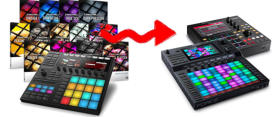
This FREE tool converts Maschine Kits
and Instruments to AKAI MPC and Force
formats.


Keyframe animation with Motion
Tweens
High quality Animated GIF engine
for web and social media
Export up to 4K for video editing,
including animated video Matte
layers
Full vector editing
Multimon Taskbar Software (XP, Vista, Win 7)
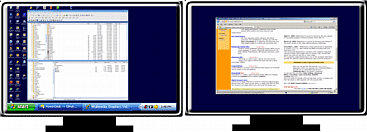
The real multi-monitor support in Windows has task-bar only in the primary monitor
that shows applications from all monitors. The extended monitors are plain without
any taskbar. There is no other way to add another taskbar to the extended monitor.
Normal Windows extended to multiple monitors:
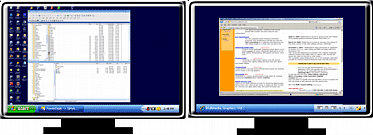
With Multimon Taskbar
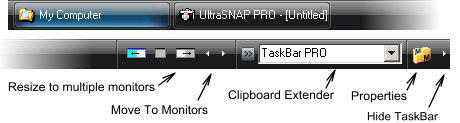
We created MultiMon taskbar to solve this issue in our office. It creates a second (and third) taskbar which will be put on
extended monitors. Each taskbar display items from that monitor only.
The PRO version has additional features such as resizing windows to multiple monitors, moving to monitors, suspending
the extended taskbars when the computer is connected via Remote Desktop and themed captions.
Collection of 30+
procedural ART and
PHOTO filters for Adobe
Photoshop + the ability
to run Photo Reactor
effects inside
Photoshop.


Run older 32-bit
Plug-ins inside
modern 64-bit
Adobe Photoshop

MM Taskbar Free 2.1
(this was developed for XP and it "sort of" works on Vista/Win7)
MM Taskbar PRO 3.5 (Trial)
(This fully supports XP/Vista/Win7 32 and 64 bit)
Registration MMtaskbar PRO
Personal and commercial single license of MultiMonitor TaskBar PRO. Works on
XP/Vista/W7 32/64 bit.
At home it can be installed on ALL your personal computers. At work it can be used
only on a single computer.
Full Commercial Site Licence. It can be installed on all computers in your
organization (wordlwide) without limitations. Easy setup for admins - no serial code
to enter, just install and that's it.
TaskBar 2.1 (freeware).
It adds second taskbar to the extended desktop on Monitor 2
It can add third taskbar to the second Extended monitor if you have 3 monitors setup.
It shows only applications from that Monitor
It hides the applications on Monitor 2 and 3 from normal Windows Taskbar
Adds a Move to Monitor button to windows applications (XP only).
Add Text Clipboard Extender
Buttons to roll-right the taskbar (good for full screen Remote Desktop)
Very carefully written, we don't want to crash our own desktop!
TaskBar PRO 3.5
Additionally to the free version
Version 3.5 doesn't use any API hooking, it is super lightweight and doesn't affect or hook into windows or the applications.
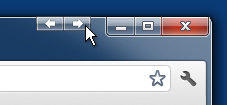
The Caption buttons (arrows) now work in all OS, including Windows 7
Works on both 32 and 64 bit OS
Support for Windows XP, Media Center (Royale on XP), Vista (Royale Noir) and Windows 7 themes
Add buttons to resize window across two or three monitors (good for spreadsheets etc..)
Move To Monitor buttons on the extended taskbar can move even special windows like Remote Desktop Client
Better handling moving windows across screens with different resolutions
Monitors Remote Desktop and can Suspend itself when you are in RD session, then restore itself after RD session is finished
Support for dual monitors if the primary monitor is on right
Caption (arrow) buttons to quickly move window to monitor
More consistent behavior of taskbar - cliciking on selected item will now minimize its window, like with original windows
taskbar
Tip: To change theme of your Multimon PRO taskbar click the Properties Button (or right click on empty space of the Multimon
taskbar), click on Properties item in menu and change the Appearance. The theme of the MultiMon is independent from the
Windows theme, so you can run Classic theme on your main XP taskbar and Vista theme on your extended Multimon taskbars.
XP Royale theme: Royale theme is a special XP theme from Microsoft that was later used on XP Media Center Edition (blue
version) and it become also blueprint for Vista theme (noir version). So if you use blue Royale theme on your XP, select Windows
Media Center theme in MultiMon to match the taskbars. If you use Royale Noir, select Vista theme to match the taskbars.
Vista Tip: Vista use hardware acceleration for its aero theme with direct writing to the display buffer. It would be therefore risky
to add arrow buttons to the aero application bar. However the "secret" hotspots for the arrow buttons (visible on the XP and
Vista classic) are still there and fully functional.
Clipboard Extender
A simple but cool Text clipboard extender can be added to the toolbar. It can be also rolled in or totally disabled.
This little box will capture all text Copy to clipboard operation and store. Other hidden functionality of Clipboard extender:
F3 - Search. Type any text and press F3, it will quickly search for the presence of this text in all stored copy operations and select
matches.
F5 - type any text and it will try to execute it. Type for example calc and press F5
Return - type any text and press return, it will be added to the clipboard list (and also copied to clipboard)
DEL - unroll the combo box so you see multiple items, Move cursor over item so it is selected (but don't click) and press DEL to
remove it from list.
Resize across monitors (PRO version)
Many programs, like spreadsheets, text editors, graphic programs have a MDI interface which means all client windows can be
positioned only within the main program window. You can't display documents in single application side by side on different
monitors because you are still limited within the main application window:
Taskbar PRO has simple buttons to resize the main window across two or even three monitors and you can then simply move
the documents around side by side.
Download
Explore the extraordinary world of Mediachance Software

About MediaChance
Products
Links

Sign up to receive Mediachance newsletter
featuring new announcements and special offers.